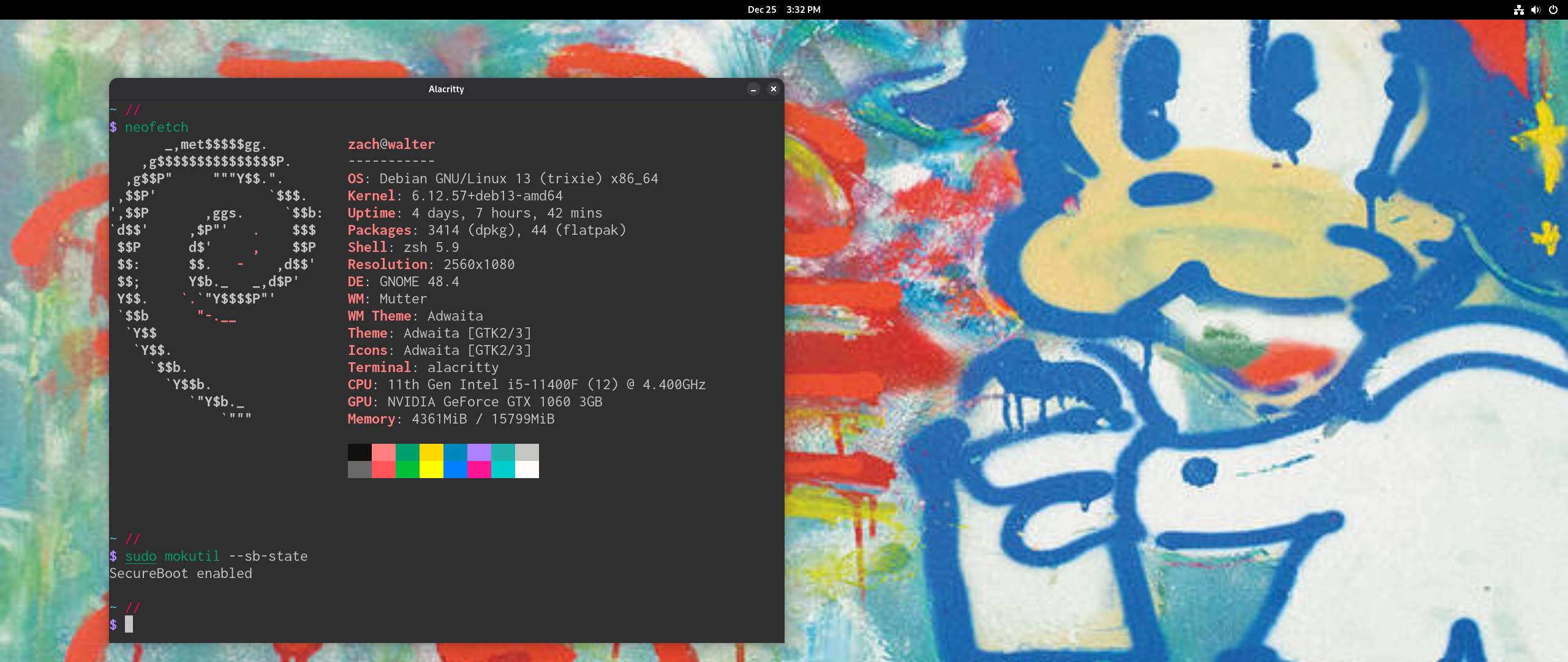
TL;DR: How I Did It
Intro
Secure boot is actually pretty well supported on Debian and other major distros. But complications can arise when:
Enabling secure boot later, not during a clean install of the OS
Using a non-default bootloader (default is typically GRUB)
Having multiple bootloaders installed
All of the above applied to my situation, making it hard mode.
Background on My Weird Setup
I was single booting Arch + systemd-boot for a while.
Then I adapted this setup to dual boot Arch & Debian via multiple systemd-boot boot entries.
When Debian was installed, GRUB got installed too, somehow, despite reusing my boot partition and specifically trying to avoid this.
Later I removed the Arch installation, and switched to dual booting Debian & Windows. (through multiple UEFI boot entries, couldn't quite get it working to launch Windows from systemd-boot)
I enabled secure boot for a Windows game (League of Legends Vanguard anti-cheat...).
Now, the problem motivating me to get secure boot working on Debian: I can't boot Debian without first disabling secure boot
Terminology
UEFI/NVRAM boot entries : Boot entries in motherboard menu (firmware level shit) (
Boot0001,Boot0002, etc.)Bootloader : Software (systemd-boot, GRUB) that loads the OS kernel, acting as the bridge between firmware (UEFI/BIOS) and the OS
UEFI (Unified Extensible Firmware Interface) : Modern firmware standard for motherboards, successor to legacy BIOS
EFI (Extensible Firmware Interface) :
.efifiles are UEFI executables, typically bootloaders and shims, placed on the boot partitionESP (EFI System Partition) : OS-independent boot partition for UEFI (typically mounted at
/boot)Shim : An alternative method of managing accepted Secure Boot keys without touching the UEFI firmware settings. In its simplest configuration, shim will just chainload any EFI executable.
Trixie : Debian 13 Trixie (stable release at time of writing)
Bookworm : Debian 12 Bookworm (oldstable release at time of writing)
Debian Docs and Shim Explained
I was hopeful when I found this excerpt from the Debian Wiki:
Starting with Trixie, users of Debian (and of the Debian Installer, since Trixie RC3) can optionally choose to use systemd-boot with shim. The integration point is the systemd-boot package and its postinst/prerm scripts. If GRUB packages are not installed, and both the shim-signed and systemd-boot-efi-[amd64|arm64]-signed packages are installed, then the maintainer scripts will run logic to install the appropriate EFI binaries to the ESP, and to add an EFI boot entry (named Debian) pointing to shim and making it the default entry. If either or both packages are removed, this logic runs in reverse and completely removes the binaries from the ESP, and deletes the EFI boot entry.
Secure Boot setup with systemd-boot - Debian Wiki
shim is a simple software package that is designed to work as a first-stage bootloader on UEFI systems.
It was developed by a group of Linux developers from various distros, working together to make Secure Boot work using Free Software. It is a common piece of code that is safe, well-understood and audited so that it can be trusted and signed using platform keys. This means that Microsoft (or other potential firmware CA providers) only have to worry about signing shim, and not all of the other programs that distro vendors might want to support.
In other words, the default secure boot keys on your motherboard firmware that work for Windows secure boot will also work for the shim secure boot. This makes it so you don't have to configure custom, non-standard secure boot keys in your motherboard firmware (UEFI).
Note... shim is not a security bypass that allows secure booting of any arbitrary unsigned EFI. It "Enforces signature verification on whatever it chainloads".
UEFI firmware
  -> shimx64.efi (Microsoft-signed shim)
     -> verifies next EFI binary (systemd-bootx64.efi, grubx64.efi)
        -> launches it if trusted (Linux kernel)
How I Did It
Follow the instructions: Secure Boot setup with systemd-boot - Debian Wiki
In the sections that follow, I'll explain where I found the docs lacking, and more detail on what I did.
Why It Was Not Working (Insofar as I Can Tell)
I tried following the instructions outlined in the Debian Wiki, and I found them difficult to understand.
I suspect there's one of two reasons it didn't work for me initially...
Reason 1: Missing systemd-boot-efi-[amd64|arm64]-signed
I did not first install systemd-boot-efi-[amd64|arm64]-signed as instructed:
If GRUB packages are not installed, and both the shim-signed and systemd-boot-efi-[amd64|arm64]-signed packages are installed, then the maintainer scripts will run logic to install the appropriate EFI binaries to the ESP...
I'm not really sure why the command to install this is not explicitly included with the other apt commands in the doc's code blocks. But I addressed this with:
sudo apt install --reinstall shim-signed systemd-boot-efi-amd64-signedReason 2: Leftover GRUB
Maybe I did not do a thorough enough purging of leftover GRUB?
A user wanting to switch from GRUB to systemd-boot should do so by removing the GRUB packages and installing systemd-boot at the same time, for example on an amd64 system:
# apt install --allow-remove-essential systemd-boot grub-efi-amd64-signed-
For good measure I did the following to fully remove GRUB:
# Find all grub packages
apt list --installed | grep -i grub
# Remove em. Your packages may vary, these were mine.
sudo apt purge grub-common grub-efi-amd64-bin grub-efi-amd64-unsigned grub-efi-amd64 grub2-common
# Other grub artifacts removed
# Enter root session `sudo -i` and `cd /boot` partition
find . -iname '*grub*'
rm -r ./grub/
Additional Info
Cleaning Up Pre-Shim systemd-boot EFIs
When I reinstalled one of the systemd-boot packages (probably systemd-boot, don't remember), I got a message about these files already being present:
/boot/efi/EFI/systemd/systemd-bootx64.efi/boot/efi/EFI/BOOT/BOOTX64.EFI
Out of an abundance of caution, I first removed the .efi files (perhaps you should back them up somewhere):
sudo rm /boot/efi/EFI/systemd/systemd-bootx64.efi /boot/efi/EFI/BOOT/BOOTX64.EFIAnd then I reinstalled said systemd-boot packages, just to be sure that the .efi files were signed, postinst scripts ran correctly, etc.
Commands for: efibootmgr - change the UEFI Boot Manager configuration
See: man efibootmgr
Using efibootmgr -v, you can see the UEFI boot entries (Boot0001, Boot0002, etc.).
You can supposedly delete boot entries through this interface, but this didn't work for me. I think this only deactivated/disabled boot entries: sudo efibootmgr -b 0004 -B
Alternatively you can disable unwanted entries in your motherboard's UEFI menu.
Set Default systemd-boot Entry to Current
Once you have booted into the right systemd-boot entry:
sudo bootctl set-default @currentVerify Secure Boot Enabled From Linux
$ sudo mokutil --sb-state
SecureBoot enabled
Get Info From bootctl status
sudo bootctl status ouputs lots of info such as:
System:
      Firmware: UEFI 2.70 (American Megatrends 5.19)
 Firmware Arch: x64
   Secure Boot: enabled (user)
  TPM2 Support: yes
  Measured UKI: no
  Boot into FW: supported

...

Available Boot Loaders on ESP:
          ESP: /boot/efi (/dev/disk/by-partuuid/d64202ea-8de9-47d6-947c-11122d0ba571)
         File: ├─/EFI/systemd/systemd-bootx64.efi (systemd-boot 257.9-1~deb13u1)
               ├─/EFI/BOOT/BOOTX64.efi
               └─/EFI/BOOT/fbx64.efi

...

Boot Loaders Listed in EFI Variables:
        Title: Debian
           ID: 0x0003
       Status: active, boot-order
    Partition: /dev/disk/by-partuuid/d64202ea-8de9-47d6-947c-11122d0ba571
         File: └─EFI/DEBIAN/SHIMX64.EFI

... and more!